New MCP: Connect Cursor or Claude to StackLinker
StackLinker now offers an MCP server – your bookmarks and workspaces inside Cursor or Claude. Overview of the integration and where to create API keys.
Published on March 15, 2026 · 4 min read
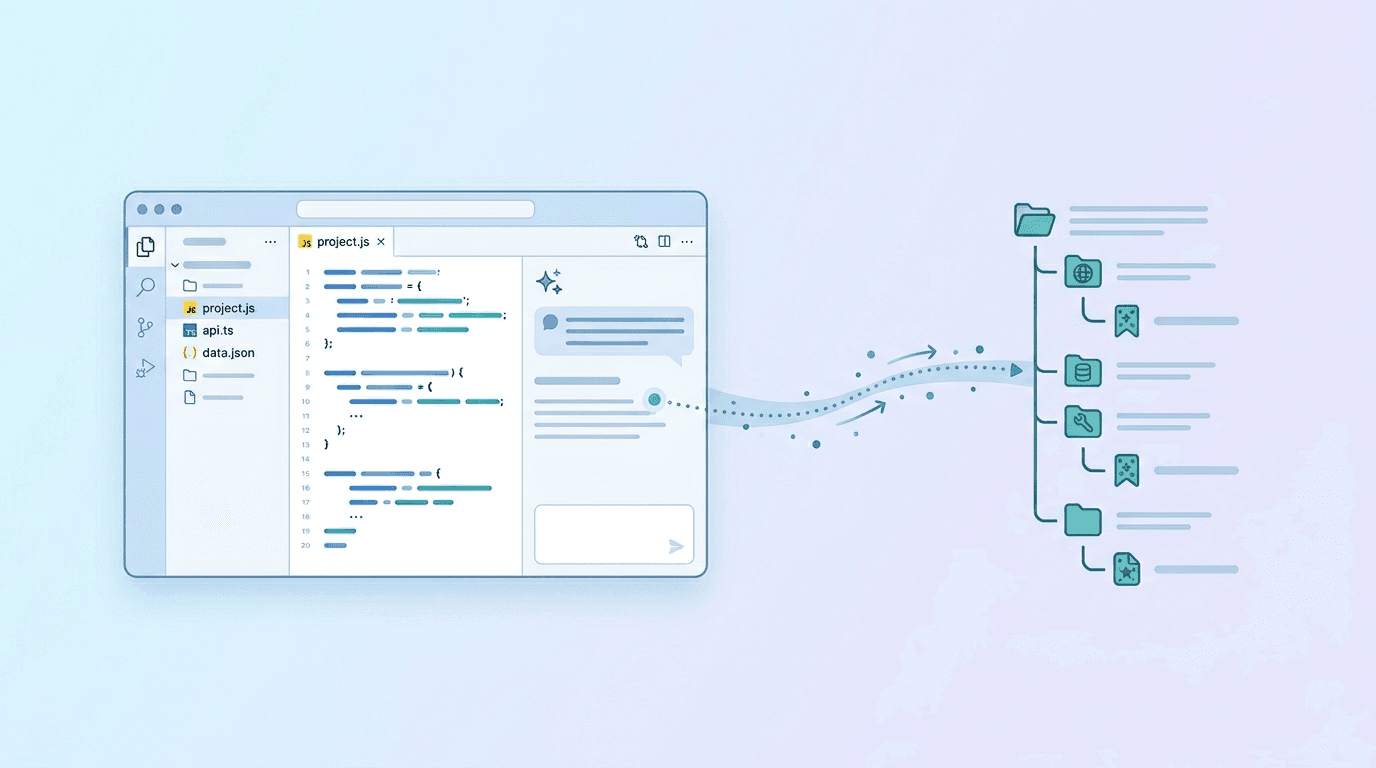
Connecting AI tools to your bookmarks and team resources makes sense: while coding in Cursor or working in Claude, you can access workspaces, bookmark trees, and members without switching windows. That’s why we’ve launched a hosted MCP server for StackLinker – add it to Cursor or any MCP-compatible app and work with bookmarks directly from your IDE or chat.
This article sums up what MCP brings, where to find the setup guide, and how to create and manage API keys in your profile.
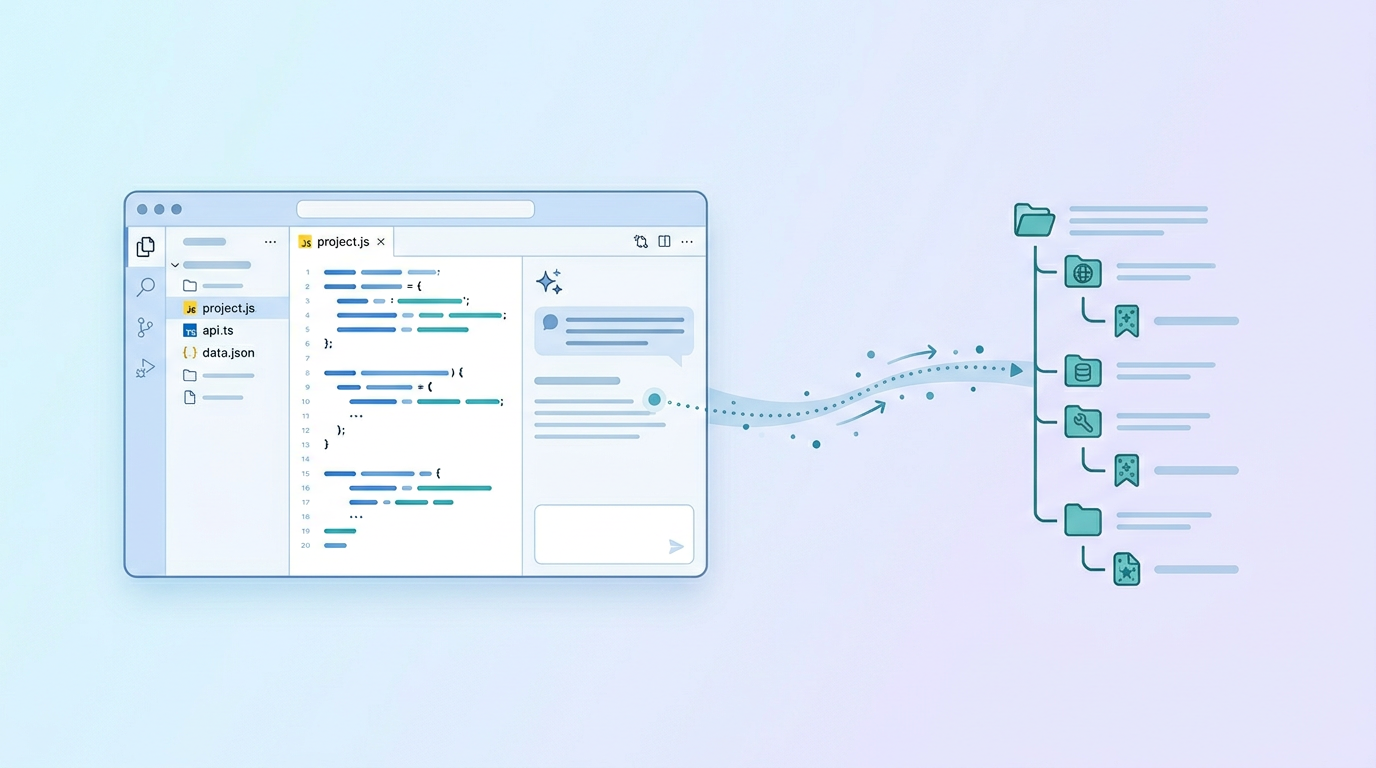
What is MCP and why use it
Model Context Protocol (MCP) is an open standard that lets applications (e.g. Cursor, Claude Desktop) connect to external servers and call their tools. The StackLinker MCP server exposes tools for working with your account, workspaces, invitations, folders, and bookmarks. The result: an assistant in Cursor or Claude can, on request, list your workspaces, load a bookmark tree, create an invitation, or add a bookmark – all without leaving the editor.
Typical use cases: quickly finding a link from a team workspace, copying a public workspace, managing invitations or members. You control everything via natural language in the AI chat.
Where to find the MCP setup guide
The full setup guide – including connection details, recommended scopes, and step-by-step instructions for Cursor, Claude, and other apps – lives on a dedicated docs page:
On that page you’ll find:
- Connection values – URL of the hosted MCP server and how to authenticate (
Authorization: Bearer YOUR_API_KEYheader). - Recommended scopes – which permissions (read/write) to set for the API key used with MCP.
- Step-by-step for Cursor – where in settings to add the remote MCP server and how to fill in the URL and header.
- Step-by-step for Claude – adding StackLinker as a remote MCP server and setting the Bearer token.
- Other apps – the same URL and auth work in any app that supports remote HTTP/Streamable HTTP MCP transport.
- Available tools – expandable sections with tools for account, workspaces, invitations, public workspaces, watched workspaces, groups, folders, and bookmarks.
- Practical tips – e.g. using a dedicated API key for MCP, scoping it to the operations you need, and storing the token securely.
For a quick start: open the MCP page, create an API key (see below), enter the URL and Bearer token in Cursor or Claude, and you’re ready to go.
Creating and managing API keys in your profile
You create the API key for MCP (and for any other API use) in your Profile. After signing in, go to Profile → API Keys (/en/profile/api-keys).
Creating a new key
In the “Create API Key” section you set:
- Name – e.g. “MCP – Cursor” or “Slack integration”. Used only to tell keys apart in the list.
- Expiration (days) – optionally how many days the key is valid. Leave empty for no expiration.
- Scopes – check
read(reading workspaces, trees, members, etc.) and optionallywrite(creating and updating bookmarks, folders, invitations, etc.). For MCP we recommend scopes based on what you want the AI to do – often read is enough; for full functionality including adding bookmarks, add write.
After submitting, the token is shown only once. Copy it and store it securely (e.g. in Cursor config or Claude settings). Once you close the preview, you won’t be able to view it again – if you lose it, you’ll need to create a new key.
List of keys and revoking
Lower on the page you’ll see the list of existing API keys: name, key prefix (to identify the key without showing the full token), scopes, created and expiry dates. For each key you can Revoke – a revoked key stops working and cannot be re-enabled. Use revoke when a key is no longer in use or may have been exposed.
For MCP it’s a good idea to use one dedicated key (e.g. “MCP – Cursor”) with the minimum scopes you need, so you can revoke it if necessary without affecting other integrations.
Summary
- StackLinker’s MCP server lets you work with bookmarks and workspaces directly from Cursor, Claude, or other MCP apps.
- The setup guide – URL, auth, and steps per app – is on the MCP page.
- API keys are created and managed under Profile → API Keys: name, expiration, scopes; token is shown once; existing keys can be revoked.
If you have questions about MCP or API keys, reach out via our contact form.