Welcome to StackLinker: Share Bookmarks with Anyone
Introducing StackLinker – a tool for sharing bookmark collections with your team, family, or community. See how it works.
Published on January 30, 2026 · 6 min read
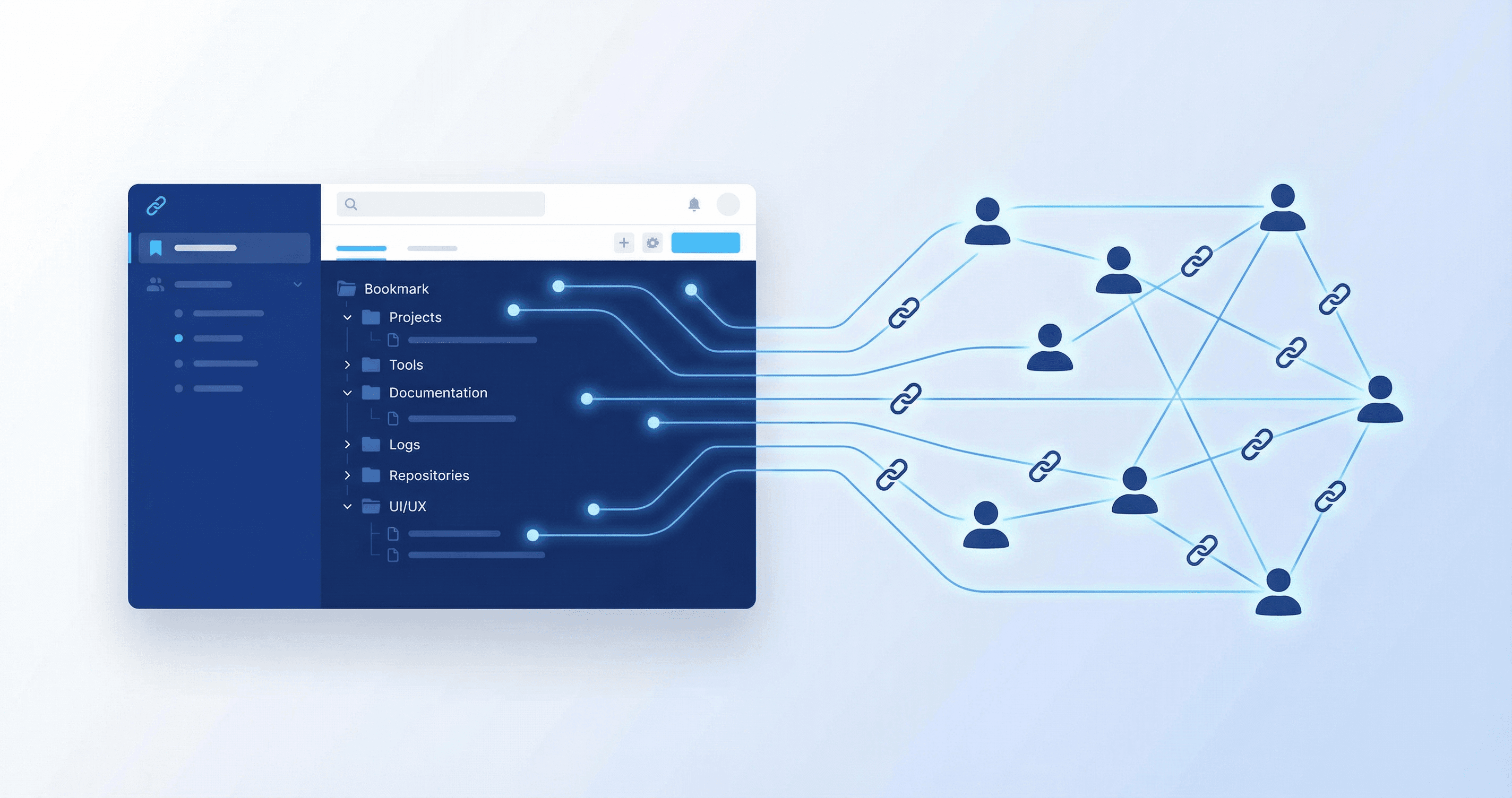
Sharing links doesn't have to be complicated. Whether you need to give colleagues access to company tools, share recipes and travel tips with family, or provide club members with educational materials – StackLinker is here for you.
We've built a platform that makes it easy to organize and share bookmark collections with anyone. No more sending links via email, no more outdated lists in documents. Just one central place where all important links are always up-to-date and accessible to the right people.
Who is StackLinker for?
- Work teams – share internal tools, documentation, and resources with colleagues
- Families – recipes, travel tips, important contacts all in one place
- Interest groups – materials for club members, hobby groups, or communities
- Freelancers – organize projects and share relevant links with clients
- Educational institutions – teachers can share study materials with students
Let's take a look at how it all works.
Workspaces: Separate Different Areas of Life
A workspace is where you gather bookmarks for a specific group of people. You can have one for work, another for family, and a third for your football team. On the dashboard you see an overview of all workspaces you're a member of.
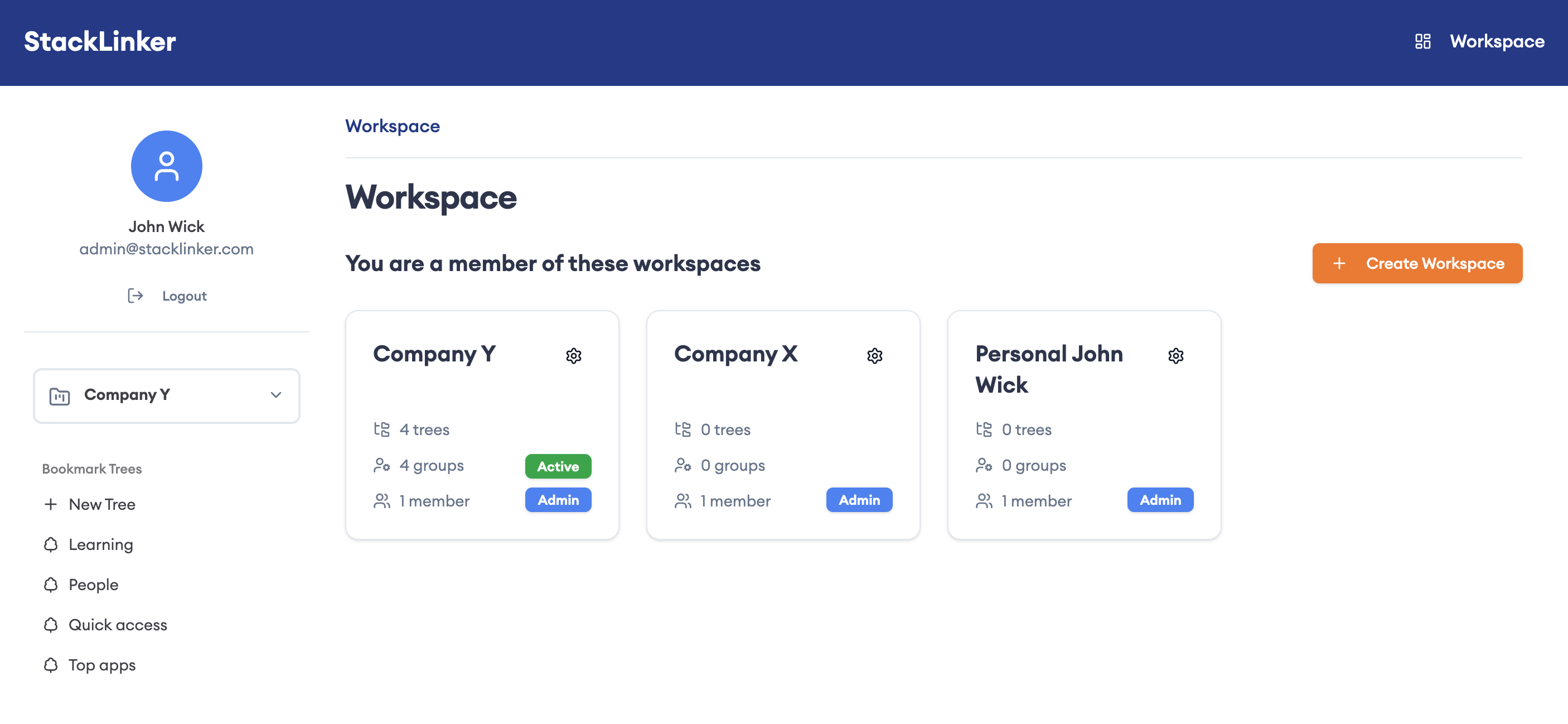
Each card shows the workspace name, member count, and your role (Admin, Editor, or View). Clicking a card takes you straight to that workspace's bookmark tree. The settings (gear) icon opens workspace settings – general info, members, groups, and tools. You can also invite new members directly via the invite button on each card.
Bookmark Tree: Folder and Link Hierarchy
Each workspace has one bookmark tree – a hierarchical structure of folders and links. You can organize it by theme: developer tools, favorite online stores, family documents, and so on.
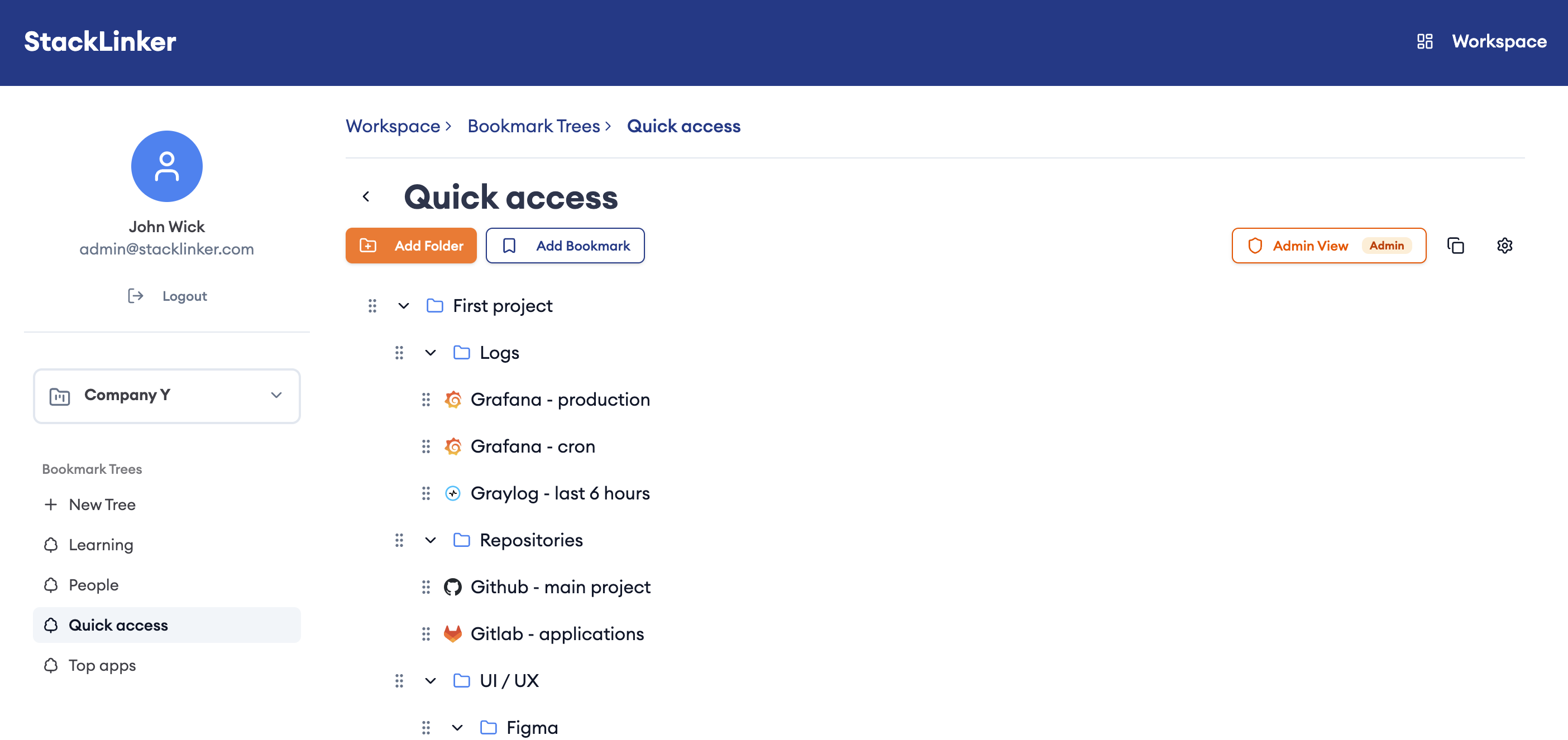
The image shows an example tree with organized folders – each bookmark displays a favicon for quick orientation. Normally you just browse and click links. When you need to edit – add a bookmark, move a folder, or rename something – switch to edit mode with the "Admin View" button (for admins) or "Edit Mode" (for editors). That reveals all editing tools, including drag and drop.
Groups: Access Control Without the Hassle
One of StackLinker's strongest features is groups. Instead of assigning permissions to each user individually, you create groups by team role. You manage groups in workspace settings (gear icon on the dashboard next to the workspace card) under the Groups tab.
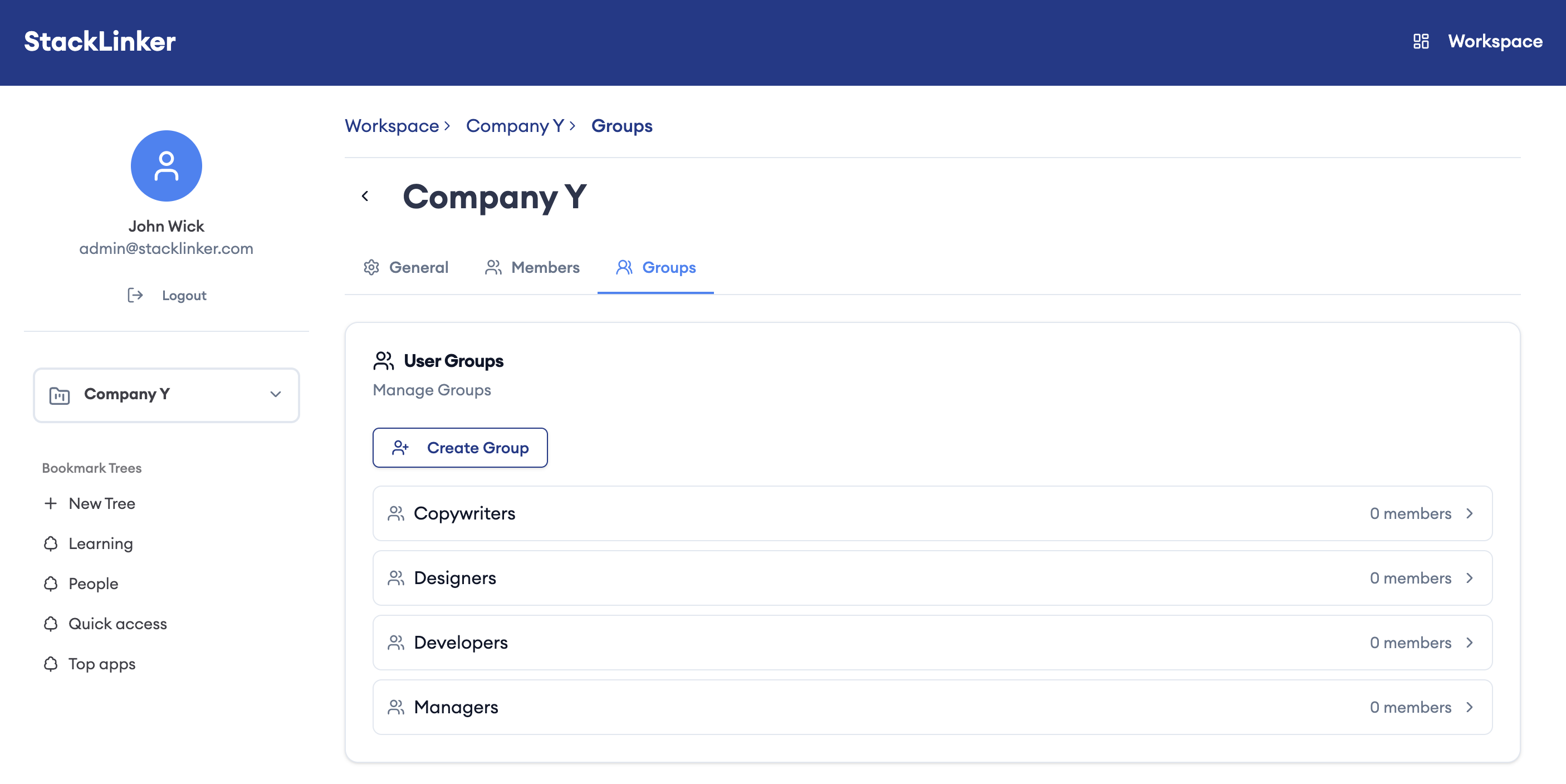
Copywriters, Designers, Developers, Managers – each group has access only to the bookmarks they need. When a new designer joins, add them to the Designers group and they automatically see all relevant tools. No manual assignment of dozens of links, no forgotten access.
Permissions: Exactly As You Need
Sometimes you need finer control. Perhaps you want the Logs folder to be accessible only to developers and managers, but designers don't need to see it.
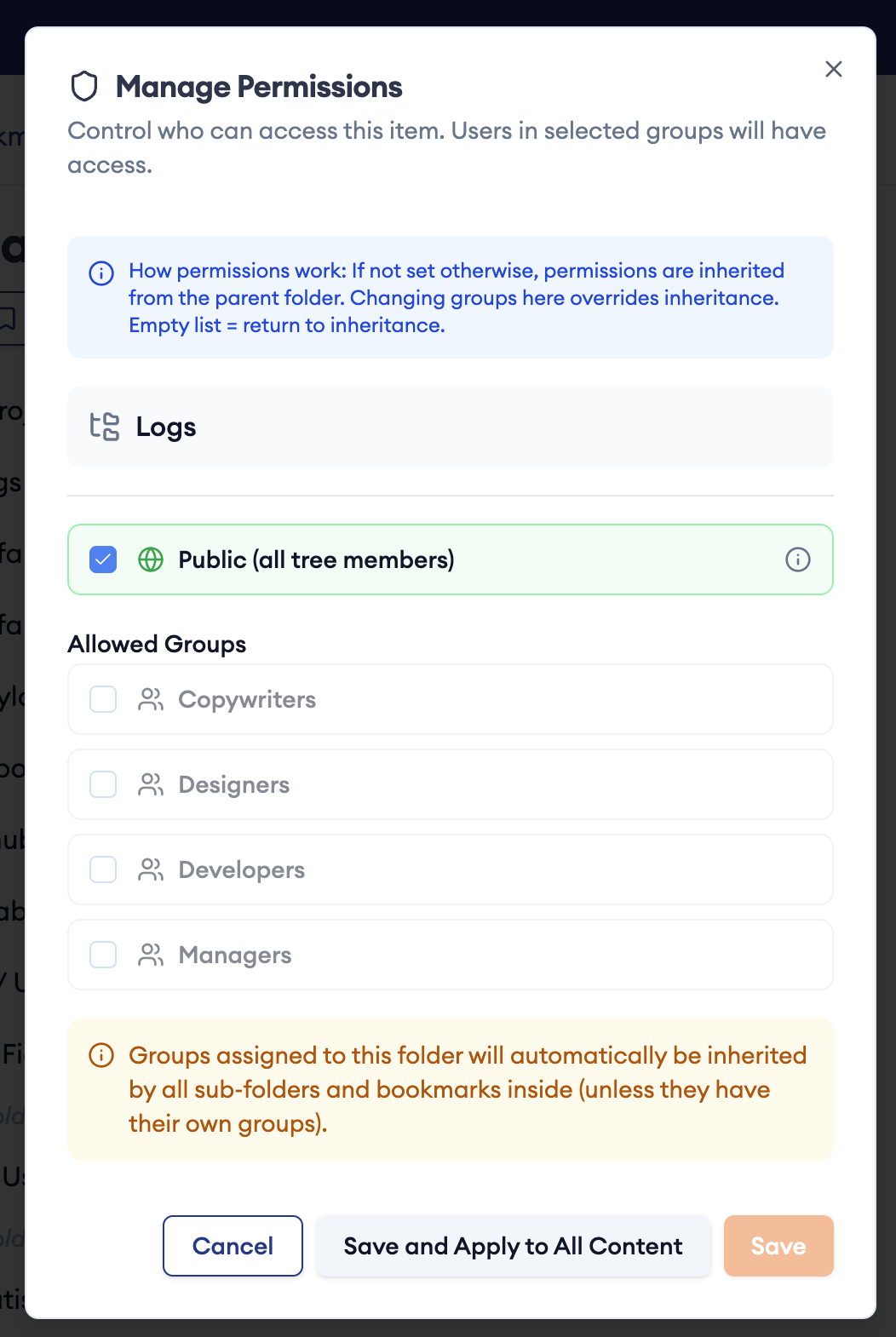
The permission management dialog is designed to be intuitive. You select which groups should have access, and changes automatically propagate to all subfolders and bookmarks. You don't have to go through hundreds of items – just set permissions at the folder level and the system takes care of the rest.
The orange box at the bottom is important: when you set permissions on a folder, they automatically inherit to everything inside. This saves time and eliminates errors.
Browser Extension: Bookmarks Always at Hand
The web interface is great for comprehensive management, but what about when you need to quickly open a bookmark during regular work? That's exactly why we have the Chrome extension.
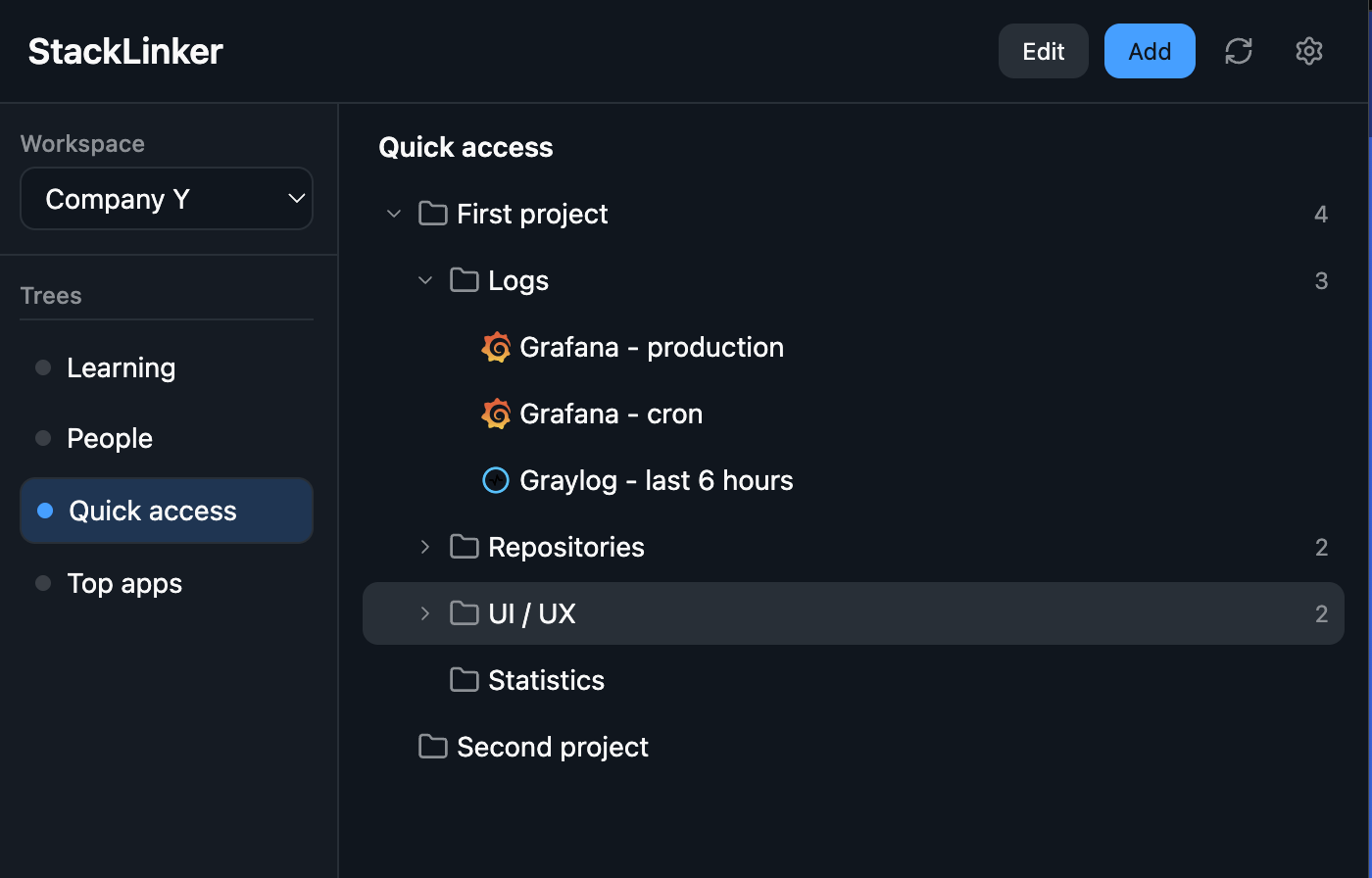
Quick access – your bookmarks are one click or a keyboard shortcut away, with no window switching. Powerful search and filtering lets you find any folder or link in a large tree in no time. Switching workspaces is intuitive: pick another workspace in the left panel and the content updates instantly. Everything is designed to be fast and easy: in the main area you browse folders and bookmarks, and numbers next to folders show how many items they contain. Most of the time, you just browse and click what you need.
When you need to make changes, simply click the "Edit" button to switch to edit mode.
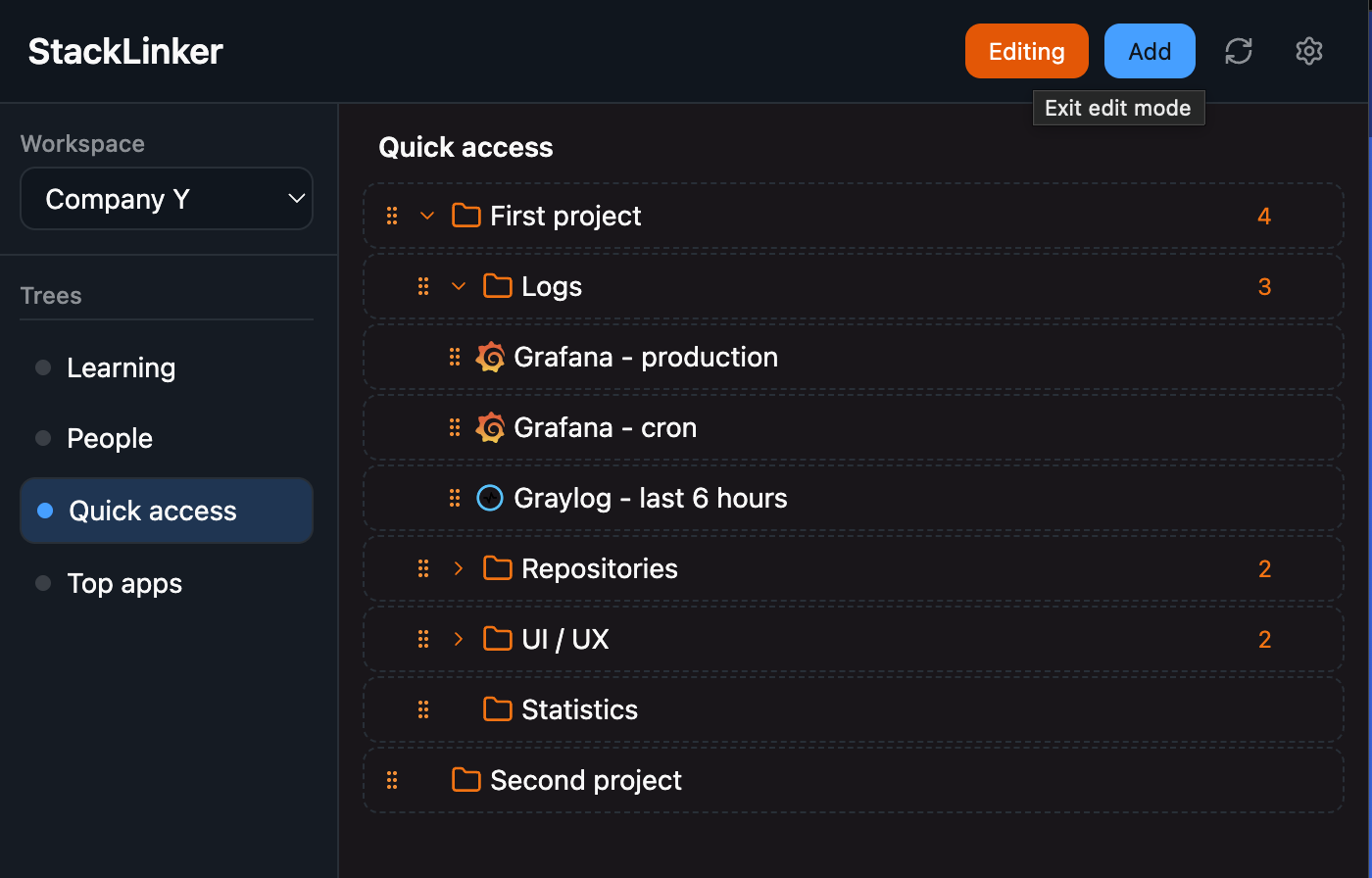
In edit mode, you can drag and drop bookmarks and folders with your mouse, change their order, move them between folders. The six dots to the left of each item indicate you can grab and move it. When you're done editing, click "Exit edit mode" to return to regular browsing. All changes sync instantly, and other members see them in real time.
Why Choose StackLinker?
Sharing without barriers. Invite anyone – colleagues, family, friends, community members. Everyone sees only what they have access to.
Always up-to-date information. When a URL changes, you update it once and everyone automatically sees the correct link. No outdated lists.
Quick start for new members. New colleagues, family members, or club participants get access to all relevant links in minutes.
Overview and control. You know exactly who has access to what, and you can adjust it anytime.
Fast, intuitive access. Browser extension, keyboard shortcuts, search, and workspace switching – all designed so you can get to your bookmarks as quickly as possible.
How to Get Started?
Registration takes just a few minutes. Create an account, set up your first workspace, and start adding bookmarks. On the dashboard (/workspace) you'll see your workspaces – click a card to open that workspace's bookmark tree. To share, invite others via email (Invite button or workspace settings → Members) and optionally assign them to groups.
For maximum convenience, we recommend installing the Chrome extension – your bookmarks stay within reach no matter what page you're viewing.
What's Coming Next?
StackLinker is a living project. We're working on a Firefox extension, bookmark usage analytics, and integration with tools like Slack or Microsoft Teams.
Follow our blog where we'll share news and tips for effective bookmark sharing.
Have questions or ideas? Reach out through our contact form.